
AI assistants (MCP)
Ask an AI assistant such as Claude or ChatGPT about your traffic, for example "Where did last week's visitors come from?", and it answers from your own Minilytics data. Assistants sign in with your Minilytics account and only read your statistics, unless you let one create and edit your funnels, goals and journeys. They can never delete anything.
Connect an assistant#
Open Settings → AI assistants and pick your assistant. Minilytics shows the steps for it, with one-click buttons for Claude, Cursor and VS Code.
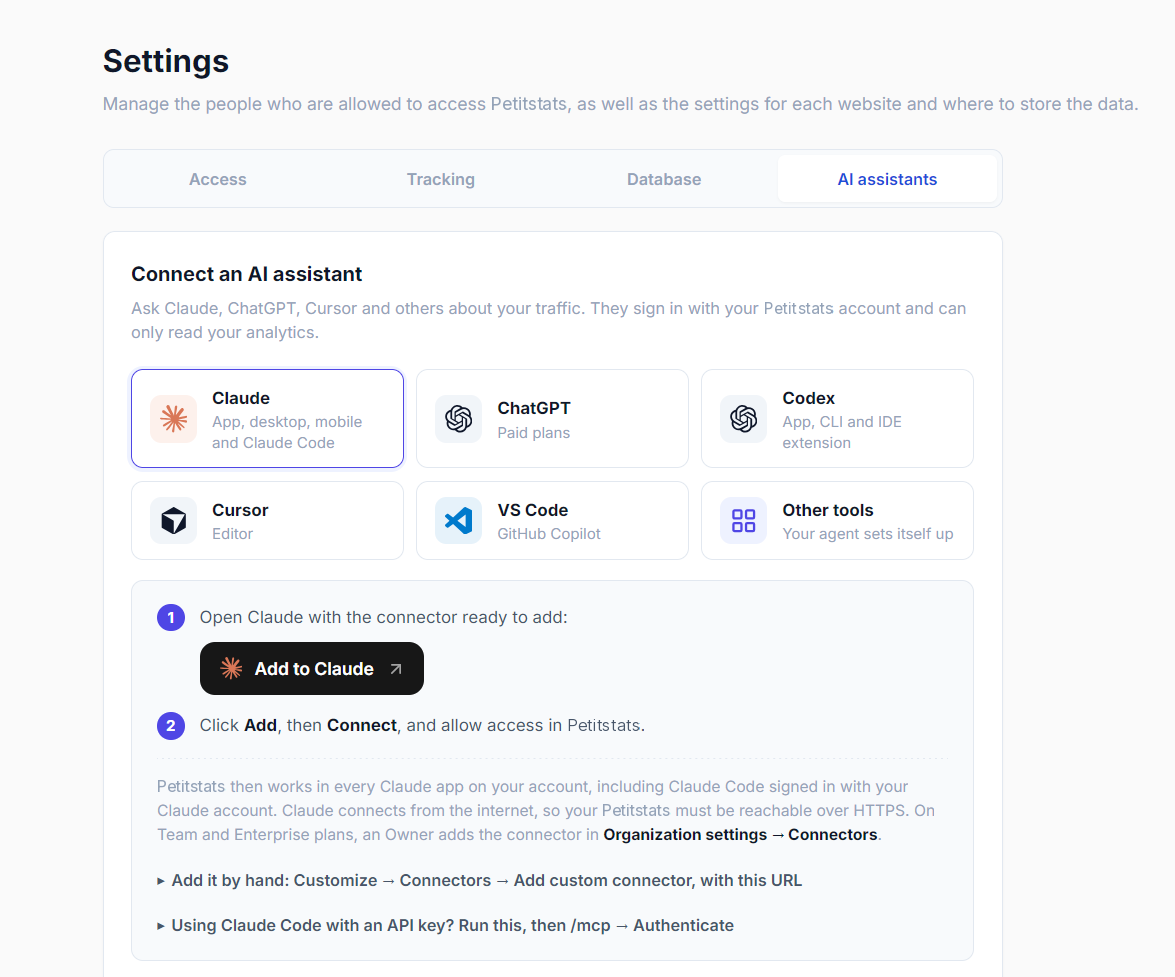
When you connect, the assistant opens a Minilytics page in your browser and asks you to allow access. There is no key to copy and nothing else to configure.
The assistant reaches Minilytics from the internet, so your Minilytics must be served over HTTPS. Its address for assistants is your Minilytics address followed by /mcp.php, for example https://analytics.example.com/mcp.php. The examples below use this one, so replace it with yours.
Claude#
Click Add to Claude in Settings → AI assistants. Claude opens with the connector already filled in. Click Add, then Connect, and allow access in Minilytics.
To add it by hand, open Customize → Connectors → Add custom connector in Claude, name it Minilytics and paste your address. The connector then works in every Claude app on your account, including Claude Code. On Team and Enterprise plans, an owner adds it once in Organization settings → Connectors, then each member connects.
If you use Claude Code with an API key rather than a Claude account, run this command, then open /mcp, select minilytics and choose Authenticate.
claude mcp add --transport http minilytics https://analytics.example.com/mcp.phpChatGPT#
- In Settings → Apps → Advanced settings, turn on Developer mode. It needs a paid plan, and on Business or Enterprise plans an admin may have to allow custom apps.
- Click Create app, name it Minilytics, choose OAuth and paste your address.
- Click Create, then allow access in Minilytics. In a chat, turn the app on from the + menu.
Codex#
In Codex, open Settings → MCP, add a server named minilytics with the Streamable HTTP type and your address, then click Authenticate. With the Codex command line, run these two commands instead.
codex mcp add minilytics --url https://analytics.example.com/mcp.php
codex mcp login minilyticsCursor#
Click Add to Cursor in Settings → AI assistants, then click Connect next to minilytics in Cursor's MCP settings and allow access.
VS Code#
Click Add to VS Code in Settings → AI assistants. When VS Code starts the server, sign in to Minilytics and allow access.
Other assistants#
For Gemini CLI, Windsurf or any other assistant, Settings → AI assistants → Other tools gives you a short text to paste into it, and the assistant sets itself up. You can also add your address to the assistant's MCP settings yourself, and most assistants then sign in on their own.
Some versions of Antigravity do not finish signing in. Use an access token with it.
What assistants can see#
Assistants read the same reports as the dashboard, such as visitors, pages, referrers, events, funnels, journeys, countries, devices and blocked bots, for any period. They can also read individual visits, as on the Sessions page: the pages viewed and events triggered, with the country and device. Visits stay anonymous: assistants never see an IP address, and a visitor's code changes every month.
Charts in the conversation#
Assistants that support MCP Apps, such as Claude and ChatGPT, show charts in the conversation instead of raw numbers. Traffic over time appears as on the Overview page, and funnels as on the Funnels page. Hover over the traffic chart to read the numbers of a day.
Other assistants get the same numbers as text and describe them in their answer.
Let an assistant edit funnels#
An assistant can also create funnels, goals and journeys, or rename them and change their steps, for example "Create a funnel from the pricing page to the signup event". It saves them in the dashboard, where they appear on the Funnels page for everyone in your workspace.
Before saving, the assistant shows you a preview with the steps and how many visits reach each one over the period. In assistants that display charts, click Save funnel in the preview to save it. Otherwise, tell the assistant to save it.
Each connection only reads until you allow it. In Settings → AI assistants → Authorized access, turn on Can edit funnels next to the assistant or the access token. Until then, the assistant tells you that it needs this permission. Turn it off to make the connection read-only again. Even when it can edit, an assistant can never delete a funnel, goal or journey, or anything else.
Manage access#
Settings → AI assistants → Authorized access lists the connected assistants and your access tokens, with when each was last used. Revoke one to cut its access right away, or turn off Can edit funnels to make it read-only again.
After you update Minilytics, an assistant may still use the old list of reports. Refresh it without reconnecting. In Claude, open Customize → Connectors, choose Minilytics and click Update, then start a new conversation. With other assistants, restart them or reconnect the server.
Access tokens#
Some assistants cannot sign in, for example agents running without a browser. Give them an access token instead. Create one in Settings → AI assistants → Other tools, under Assistant can't sign in?, and copy it right away, because it is shown only once. Like a sign-in, a token only reads your statistics until you let it edit funnels, and you can revoke it at any time.
Add the token to the assistant's MCP settings, as in this example.
{
    "mcpServers": {
        "minilytics": {
            "type": "http",
            "url": "https://analytics.example.com/mcp.php",
            "headers": { "Authorization": "Bearer mlt_your_token" }
        }
    }
}Troubleshooting#
- The assistant fails with
Unauthorizedwithout opening a sign-in page. It cannot sign in on its own. Use an access token. - No assistant can sign in. Check that Minilytics is served over HTTPS. On Nginx or Caddy, use the web server configuration, which lets assistants sign in. Behind a reverse proxy, the proxy must forward the
X-Forwarded-Protoheader.