
Tracking
To start collecting visits, add your website in the dashboard with Add New Website, then copy the tracking snippet it gives you. It looks like this.
<script
  defer
  src="https://analytics.example.com/minilytics.js"
  data-site-id="my_site"
  data-site-key="your-private-key"
  data-privacy-mode="strict"
></script>
Paste it in the <head> of every page of your website. Minilytics then counts page views on its own, including on websites that change pages without reloading.
Measure clicks and other actions#
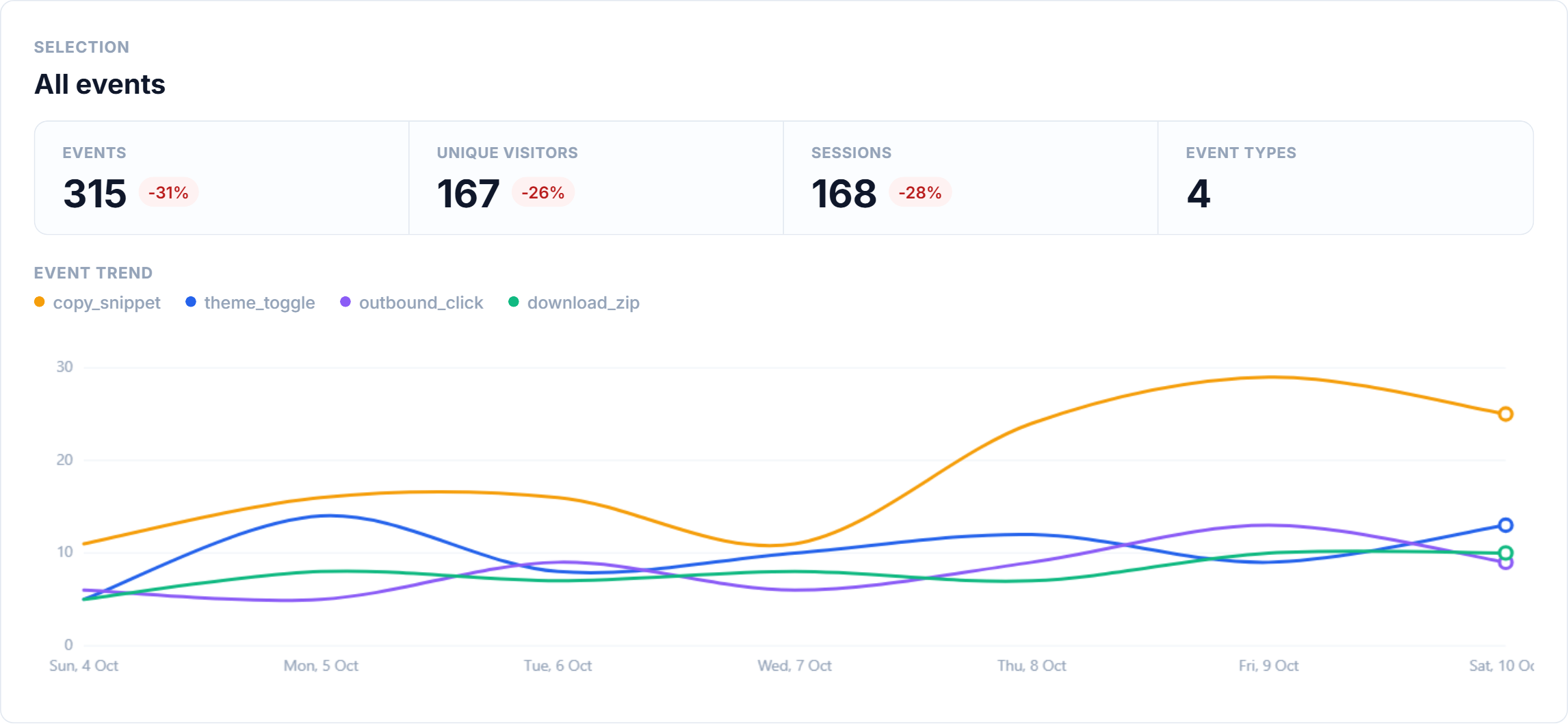
Page views are counted automatically. To also measure actions, such as sign-ups or clicks on a button, send events.
The simplest way is to add a data-minilytics-event attribute to the element. Minilytics sends the event each time it is clicked, along with any other data-minilytics-… attribute you add.
<button data-minilytics-event="signup_button" data-minilytics-plan="pro">
  Sign up
</button>
From your own JavaScript, call minilytics.track with the name of the event and, if you want, some details.
minilytics.track("signup", { plan: "pro" });Your events then appear on the Events page of the dashboard.
Measure revenue#
To see how much your website earns, call minilytics.revenue when someone pays, with the name of the event, the amount and, if you want, some details.
minilytics.revenue("purchase", 49.9, { currency: "EUR", order_id: "1042" });Only these events count as money: a revenue property sent with minilytics.track stays an ordinary property.
- The amount must be a positive number.
currencyis the three-letter code of the currency, such asEURorUSD. Amounts are added up in one currency only: the one used by most orders. Orders without a currency count in it, and orders in another currency are listed apart.order_idis optional but recommended. An order is counted only once, so a visitor reloading the confirmation page does not count it twice.
Any event name works, so you can tell apart a purchase from a subscription.
The Revenue page then shows your revenue, orders, average order and conversion rate, compared with the previous period. It also shows which channels, sources, campaigns, landing pages and countries bring in the money. Each order is attributed to the visit it was made in, and the Sessions page shows what each visitor spent.
Visits from robots#
As with any analytics tool, you want to count only real visitors, not automated programs. Minilytics tries to ignore robots in two ways.
- Using the user agent: Crawlers, link previews and scripts such as
curlannounce themselves in their user agent, and automated browsers give themselves away to the tracking script. Minilytics recognises both and ignores them. - What the visitor does: A real visitor moves the mouse, scrolls, touches the screen or presses a key, or at least looks at the page. Minilytics only sends a page view after the first of these, or once the page has been on screen for 3 seconds, so a program that merely loads a page, a page preloaded by the browser or a tab left in the background is never counted.
The visits that were ignored are listed at the bottom of the Overview page, with the reason why. Visitors who left in under 3 seconds without interacting appear there as Left without interacting. Nothing about them is added to your statistics. Of course, thoses methods are not perfect and some robots can still be counted, we apologize for that and we are working on improving our detection methods.
If you prefer to count every page load anyway, add data-require-interaction="false" to the snippet.
When nothing shows up#
First, check that your website's domain is listed in Settings → Tracking → Allowed domains. Minilytics ignores visits coming from any other domain.
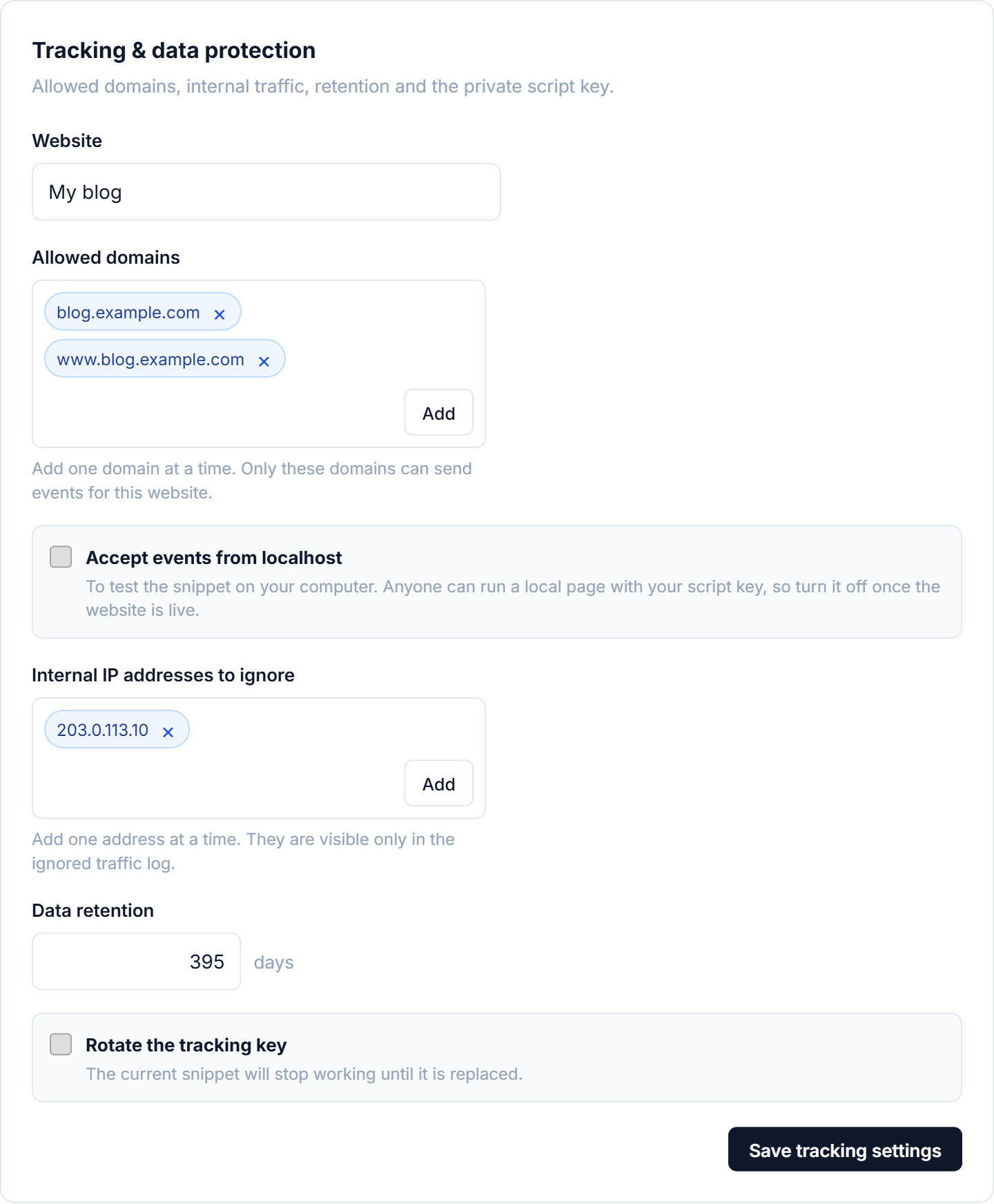
To try the snippet on your own computer, turn on Accept events from localhost in the same place. Turn it off once your website is live, since anyone can then send data from their own computer.
If visits still do not arrive, add data-debug="true" to the snippet. Minilytics then explains in the browser console what it sends and what goes wrong. Remove it once everything works.
<script
  defer
  src="https://analytics.example.com/minilytics.js"
  data-site-id="my_site"
  data-site-key="your-private-key"
  data-privacy-mode="strict"
  data-debug="true"
></script>